Sunday, August 4, 2019

Python strftime()

Example 1: datetime to string using strftime()

The program below converts a datetime object containing current date and time to different string formats.
  1. from datetime import datetime
  2. now = datetime.now() # current date and time
  3. year = now.strftime("%Y")
  4. print("year:", year)
  5. month = now.strftime("%m")
  6. print("month:", month)
  7. day = now.strftime("%d")
  8. print("day:", day)
  9. time = now.strftime("%H:%M:%S")
  10. print("time:", time)
  11. date_time = now.strftime("%m/%d/%Y, %H:%M:%S")
  12. print("date and time:",date_time)
When you run the program, the output will something like be:

year: 2018
month: 12
day: 24
time: 04:59:31
date and time: 12/24/2018, 04:59:31
Here, yeardaytime and date_time are strings, whereas now is a datetime object.

How strftime() works?

In the above program, %Y%m%d etc. are format codes. The strftime() method takes one or more format codes as an argument and returns a formatted string based on it.
  1. We imported datetime class from the datetime module. It's because the object of datetime class can access strftime() method.

    Import datetime module in Python

     
  2. The datetime object containing current date and time is stored in now variable.

    datetime object containing current date and time

     
  3. The strftime() method can be used to create formatted strings.
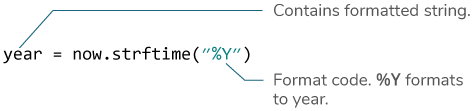
    Python strftime() example

     
  4. The string you pass to the strftime() method may contain more than one format codes.
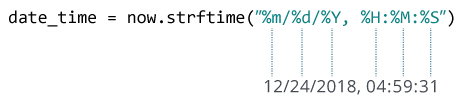
    Python strftime() example
     

Example 2: Creating string from a timestamp

  1. from datetime import datetime
  2. timestamp = 1528797322
  3. date_time = datetime.fromtimestamp(timestamp)
  4. print("Date time object:", date_time)
  5. d = date_time.strftime("%m/%d/%Y, %H:%M:%S")
  6. print("Output 2:", d)
  7. d = date_time.strftime("%d %b, %Y")
  8. print("Output 3:", d)
  9. d = date_time.strftime("%d %B, %Y")
  10. print("Output 4:", d)
  11. d = date_time.strftime("%I%p")
  12. print("Output 5:", d)
When you run the program, the output will be:
Date time object: 2018-06-12 09:55:22
Output 2: 06/12/2018, 09:55:22
Output 3: 12 Jun, 2018
Output 4: 12 June, 2018
Output 5: 09AM

Format Code List

The table below shows all the codes that you can pass to the strftime() method.
DirectiveMeaningExample
%aAbbreviated weekday name.Sun, Mon, ...
%AFull weekday name.Sunday, Monday, ...
%wWeekday as a decimal number.0, 1, ..., 6
%dDay of the month as a zero-padded decimal.01, 02, ..., 31
%-dDay of the month as a decimal number.1, 2, ..., 30
%bAbbreviated month name.Jan, Feb, ..., Dec
%BFull month name.January, February, ...
%mMonth as a zero-padded decimal number.01, 02, ..., 12
%-mMonth as a decimal number.1, 2, ..., 12
%yYear without century as a zero-padded decimal number.00, 01, ..., 99
%-yYear without century as a decimal number.0, 1, ..., 99
%YYear with century as a decimal number.2013, 2019 etc.
%HHour (24-hour clock) as a zero-padded decimal number.00, 01, ..., 23
%-HHour (24-hour clock) as a decimal number.0, 1, ..., 23
%IHour (12-hour clock) as a zero-padded decimal number.01, 02, ..., 12
%-IHour (12-hour clock) as a decimal number.1, 2, ... 12
%pLocale’s AM or PM.AM, PM
%MMinute as a zero-padded decimal number.00, 01, ..., 59
%-MMinute as a decimal number.0, 1, ..., 59
%SSecond as a zero-padded decimal number.00, 01, ..., 59
%-SSecond as a decimal number.0, 1, ..., 59
%fMicrosecond as a decimal number, zero-padded on the left.000000 - 999999
%zUTC offset in the form +HHMM or -HHMM. 
%ZTime zone name. 
%jDay of the year as a zero-padded decimal number.001, 002, ..., 366
%-jDay of the year as a decimal number.1, 2, ..., 366
%UWeek number of the year (Sunday as the first day of the week). All days in a new year preceding the first Sunday are considered to be in week 0.00, 01, ..., 53
%WWeek number of the year (Monday as the first day of the week). All days in a new year preceding the first Monday are considered to be in week 0.00, 01, ..., 53
%cLocale’s appropriate date and time representation.Mon Sep 30 07:06:05 2013
%xLocale’s appropriate date representation.09/30/13
%XLocale’s appropriate time representation.07:06:05
%%A literal '%' character.%

Example 3: Locale's appropriate date and time

  1. from datetime import datetime
  2. timestamp = 1528797322
  3. date_time = datetime.fromtimestamp(timestamp)
  4. d = date_time.strftime("%c")
  5. print("Output 1:", d)
  6. d = date_time.strftime("%x")
  7. print("Output 2:", d)
  8. d = date_time.strftime("%X")
  9. print("Output 3:", d)
When you run the program, the output will be:

Output 1: Tue Jun 12 09:55:22 2018
Output 2: 06/12/18
Output 3: 09:55:22
Format codes %c%x and %X are used for locale's appropriate date and time representation.

We also recommend you to check Python strptime(). The strptime() method creates a datetime object from a string.

Saturday, July 27, 2019

General Errors after Hive installation

We may get couple of errors when we try to start hive via bin/hive command. The followings are the errors and corresponding fixes:

Error #1:
Exception in thread "main" java.lang.RuntimeException: Couldn't create directory ${system:java.io.tmpdir}/${hive.session.id}_resources

Fix #1: edit hive-site.xml:
  <property>
    <name>hive.downloaded.resources.dir</name>
    <!--
    <value>${system:java.io.tmpdir}/${hive.session.id}_resources</value>
    -->
    <value>/home/hduser/hive/tmp/${hive.session.id}_resources</value>
    <description>Temporary local directory for added resources in the remote file system.</description>
  </property>

Error #2:
java.net.URISyntaxException: Relative path in absolute URI: ${system:java.io.tmpdir%7D/$%7Bsystem:user.name%7D
Fix #2: replace ${system:java.io.tmpdir}/${system:user.name} by /tmp/mydir in hive-site.xml (see Confluence - AdminManual Configuration):
  <property>
    <name>hive.exec.local.scratchdir</name>
    <!--
    <value>${system:java.io.tmpdir}/${system:user.name}</value>
    -->
    <value>/tmp/mydir</value>
    <description>Local scratch space for Hive jobs</description>
  </property>

Now that we fixed the errors, let's start Hive CLI:

hduser@laptop:/usr/local/apache-hive-2.1.0-bin/bin$ hive
SLF4J: Class path contains multiple SLF4J bindings.
SLF4J: Found binding in [jar:file:/usr/local/apache-hive-2.1.0-bin/lib/log4j-slf4j-impl-2.4.1.jar!/org/slf4j/impl/StaticLoggerBinder.class]
SLF4J: Found binding in [jar:file:/usr/local/hadoop/share/hadoop/common/lib/slf4j-log4j12-1.7.5.jar!/org/slf4j/impl/StaticLoggerBinder.class]
SLF4J: See http://www.slf4j.org/codes.html#multiple_bindings for an explanation.
SLF4J: Actual binding is of type [org.apache.logging.slf4j.Log4jLoggerFactory]

Logging initialized using configuration in jar:file:/usr/local/apache-hive-2.1.0-bin/lib/hive-common-2.1.0.jar!/hive-log4j2.properties Async: true
Hive-on-MR is deprecated in Hive 2 and may not be available in the future versions. Consider using a different execution engine (i.e. spark, tez) or using Hive 1.X releases.

To display all the tables:

hive> show tables;
OK
Time taken: 4.603 seconds

We can exit from that Hive shell by using exit command:

hive> exit;
hduser@laptop:/usr/local/apache-hive-2.1.0-bin/bin$ 

Caused by: java.net.URISyntaxException: while starting Hive

Error Code:

Caused by: java.net.URISyntaxException: Relative path in absolute URI: ${system:java.io.tmpdir%7D/$%7Bsystem:user.name%7D


Solution:
Put the following at the beginning of hive-site.xml
  <property>
    <name>system:java.io.tmpdir</name>
    <value>/tmp/hive/java</value>
  </property>
  <property>
    <name>system:user.name</name>
    <value>${user.name}</value>
  </property>

Thursday, July 25, 2019

Install Hive on windows: 'hive' is not recognized as an internal or external command, operable program or batch file


1
If someone is still going through this problem; here's what i did to solve hive installation on windows.
My configurations are as below (latest as of date): I am using Windows 10
  • Hadoop 2.9.1
  • derby 10.14
  • hive 2.3.4 (my hive version does not contain bin/hive.cmd; the necessary file to run hive on windows)
@wheeler above mentioned that Hive is for Linux. Here's the hack to make it work for windows. My Hive installation version did not come with windows executable files. Hence the hack!
STEP 1
There are 3 files which you need to specifically download from *https://svn.apache.org/repos/
  1. https://svn.apache.org/repos/asf/hive/trunk/bin/hive.cmd save it in your %HIVE_HOME%/bin/ as hive.cmd
  2. https://svn.apache.org/repos/asf/hive/trunk/bin/ext/cli.cmd save it in your %HIVE_HOME%/bin/ext/ as cli.cmd
  3. https://svn.apache.org/repos/asf/hive/trunk/bin/ext/util/execHiveCmd.cmd save it in your %HIVE_HOME%/bin/ext/util/ as execHiveCmd.cmd*
where %HIVE_HOME% is where Hive is installed.
STEP 2
Create tmp dir under your HIVE_HOME (on local machine and not on HDFS) give 777 permissions to this tmp dir
STEP 3
Open your conf/hive-default.xml.template save it as conf/hive-site.xml Then in this hive-site.xml, paste below properties at the top under
<property>
    <name>system:java.io.tmpdir</name>
    <value>{PUT YOUR HIVE HOME DIR PATH HERE}/tmp</value> 
    <!-- MY PATH WAS C:/BigData/hive/tmp -->
</property>
<property>
    <name>system:user.name</name>
    <value>${user.name}</value>
</property>
(check the indents)
STEP 4 - Run Hadoop services
start-dfs
start-yarn
  • Run derby
StartNetworkServer -h 0.0.0.0
Make sure you have all above services running - go to cmd for HIVE_HOME/bin and run hive command
hive
